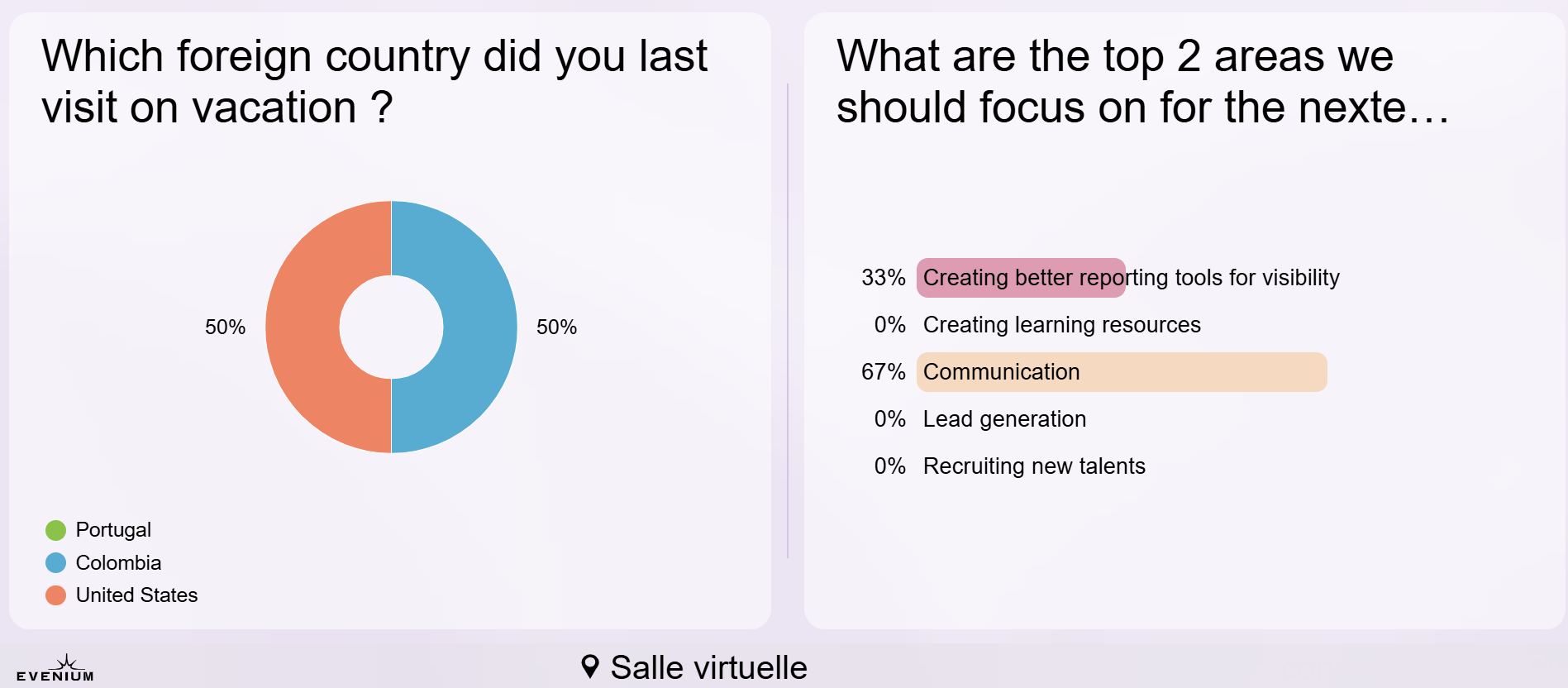
Why is it useful?
The poll results comparison feature on ConnexMe TV allows you to easily view:
How participants’ answers evolve over time on the same question.
The differences or trends between multiple questions.
How does it work?
1. Prepare the results display
- The comparison option becomes visible as soon as a set of poll results is displayed on the presentation screen.
- Make sure ConnexMe TV is running on the computer used for the presentation.
2. Access the polls
In the ConnexMe app, go to the Interact tab, then open the Polls page.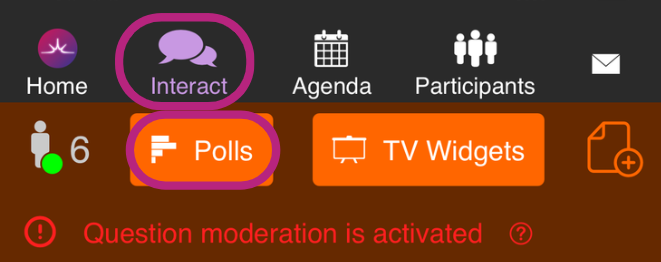
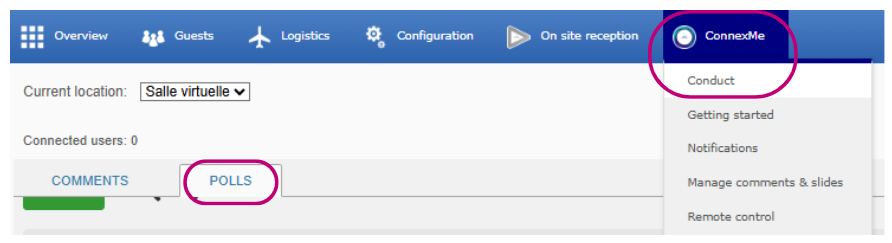
In the back office, go to the ConnexMe > Conduct tab, then to Polls
3. Compare two sets of results for the same question
From the ConnexMe app:
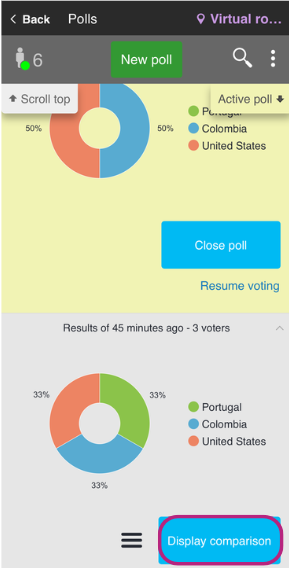
Display the first set of results.
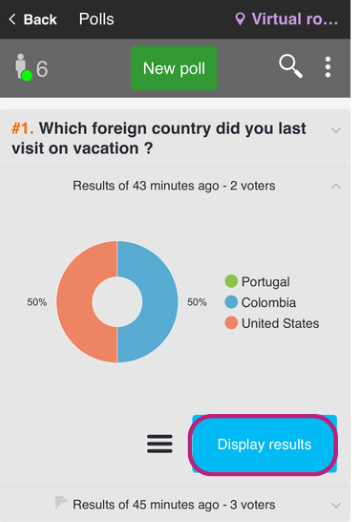
Then click on the results from another wave.
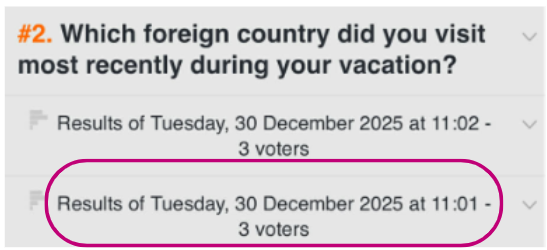
And click on Display comparison button.
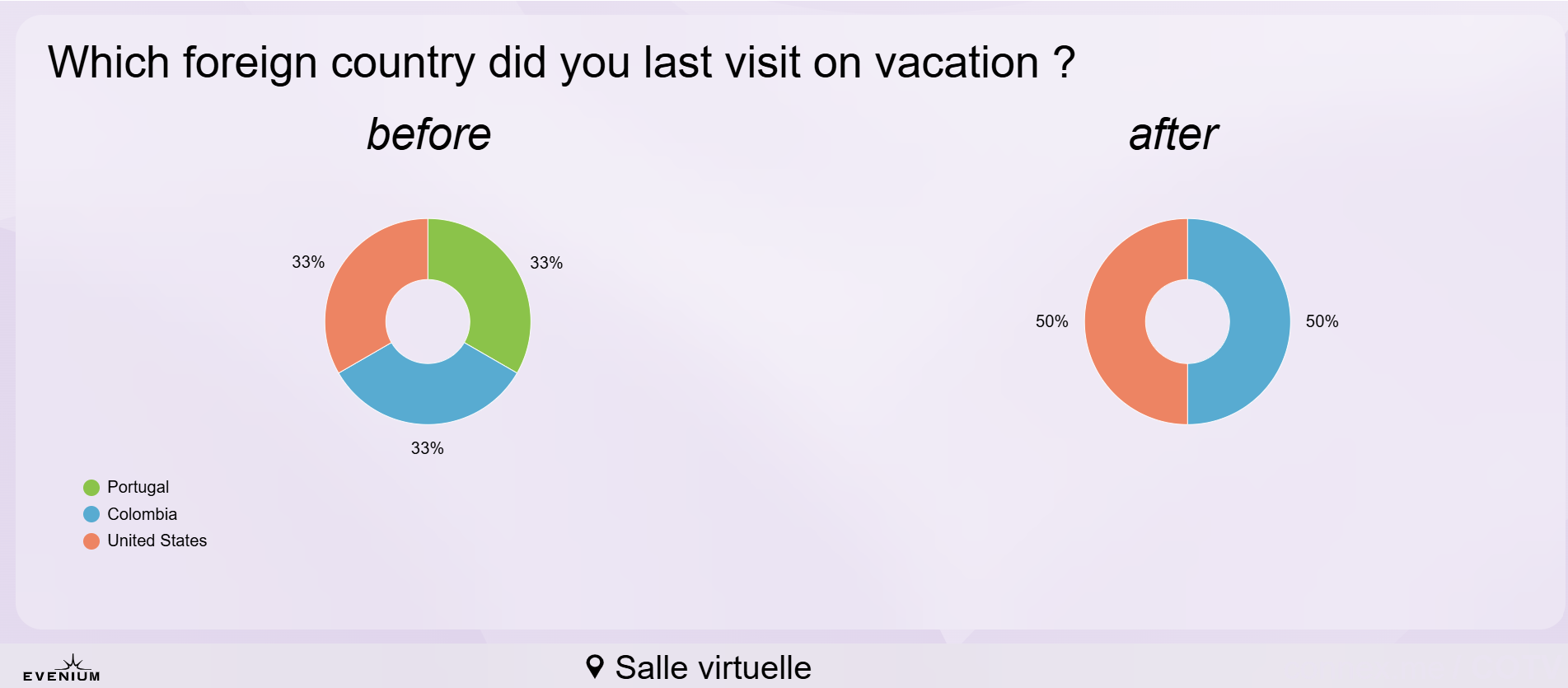
The overlay of results will be displayed on the screen via ConnexMe TV.
From the back-office:
- Display the first set of results.
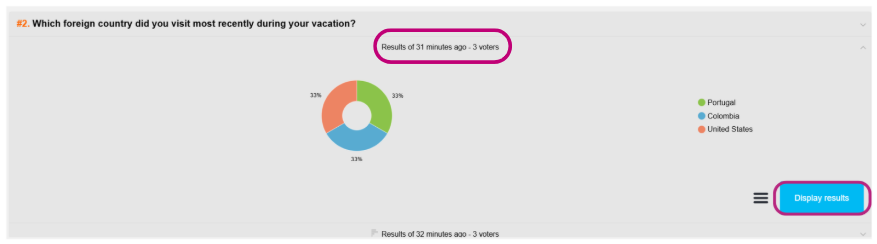
- Then click on the results from another wave, followed by Display comparison.
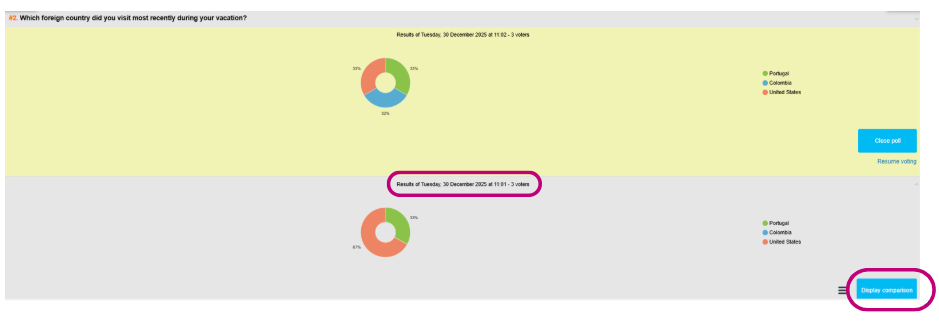
- The overlay of results will be displayed on the screen via ConnexMe TV.
4. Compare two sets of results for different questions
NOTE: This is only possible from the ConnexMe application
First, display a set of results.
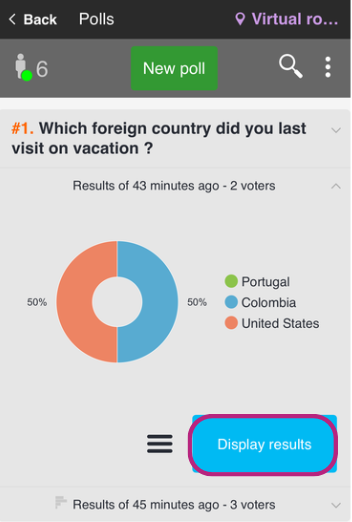
Select another set of results from a different question, the Display comparison button will then appear.
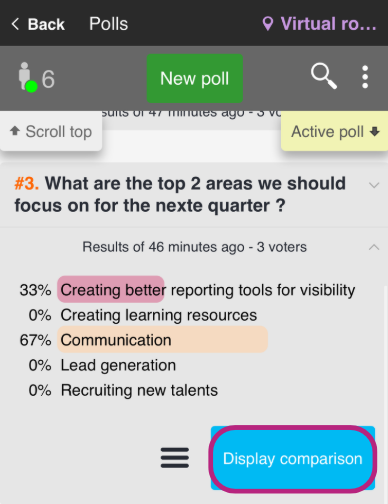
Click on it to see both results sets displayed simultaneously.