
Why is it useful?
Session surveys are directly accessible within each session’s information in the ConnexMe app, making them easy for participants to find and complete.
This visibility helps improve response rates. For organizers, feedback is automatically centralized in the back office for quick and efficient analysis.
How does it work?
⚠️ Please note: This feature is only available to users who have subscribed to the “Online Survey” module.
This is an additional paid option.
To learn more, please contact our customer team:
Email: support@evenium.com
Phone: +33 1 47 70 90 35
Creating a survey for a session
In your back office:
Under Satisfaction Survey > Edit form:
Click “Create a survey”
Select “Session evaluation survey”
Set the title of your survey
Click “Create”
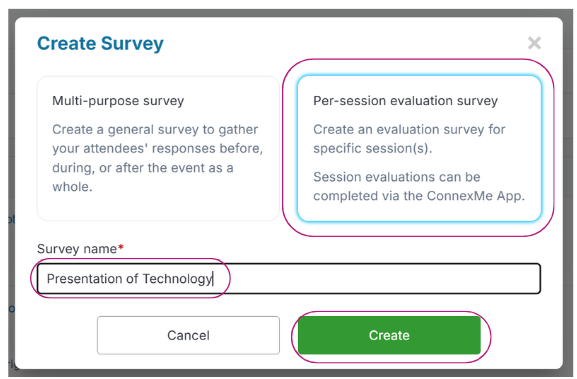
Your survey is then generated.
Customization and session linking
Once the survey is created, you will be taken to the editing page:
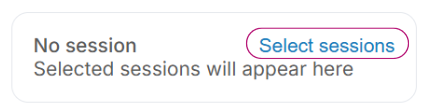
Click “Select sessions”
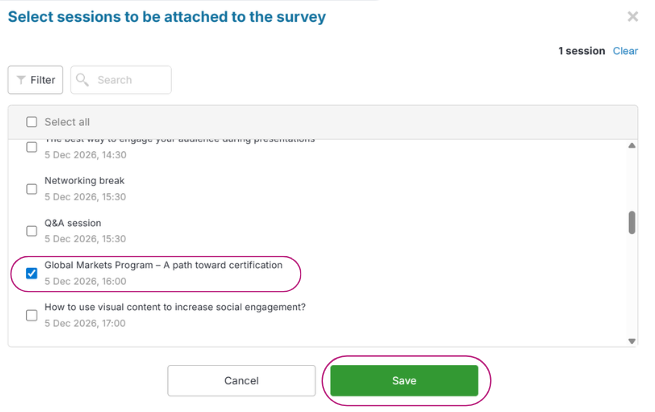
Choose one or multiple sessions linked to that survey
Click “Save”
You can edit the survey at any time using the “Edit” button, then update your form.
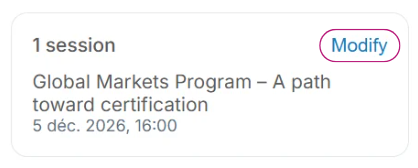
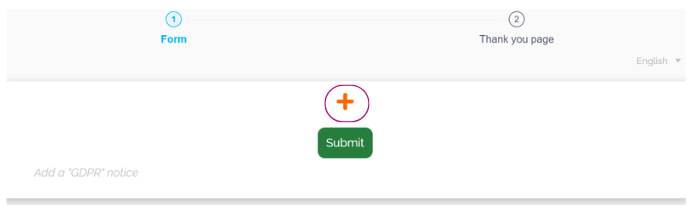
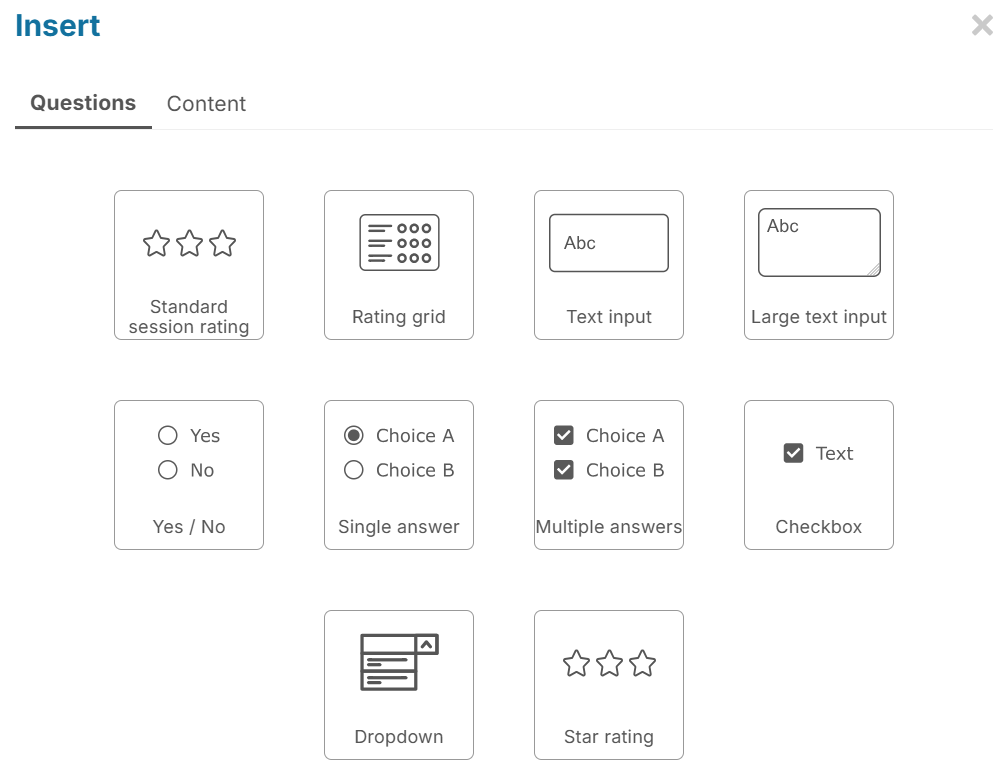
You can also customize the form, add questions, and adapt its content to your needs.
Survey settings
In Settings, you can:
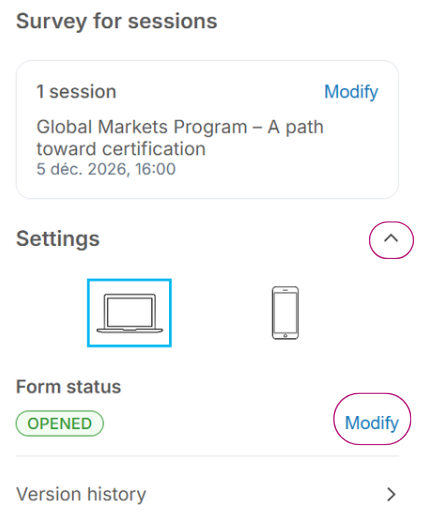
Set the form status:
Open with an automatic closing date
Closed
Customize the message displayed when the form is closed
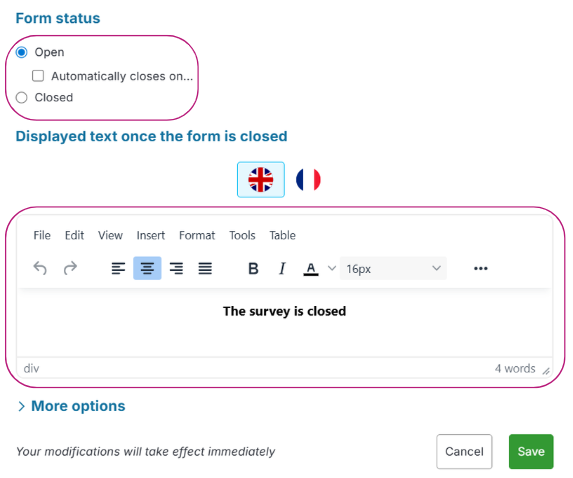
Once ready, remember to publish the latest version using the “Publish” button.

Display in ConnexMe
In the ConnexMe app:
Participants access the survey directly from the session
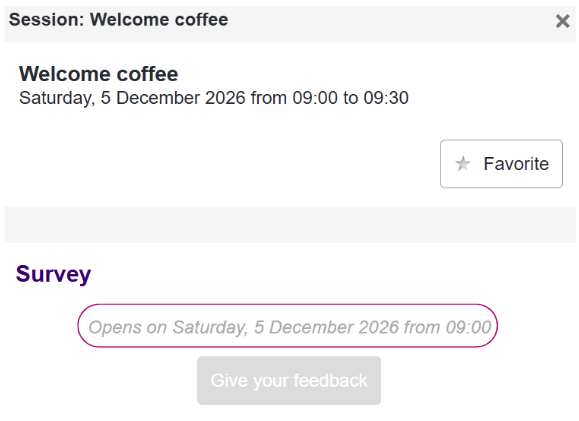
The “Give your feedback” button becomes active only once the session has started
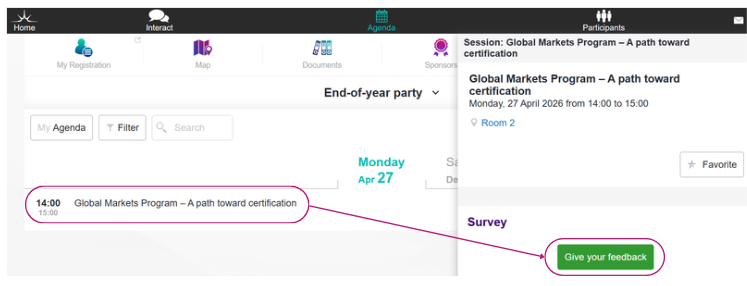
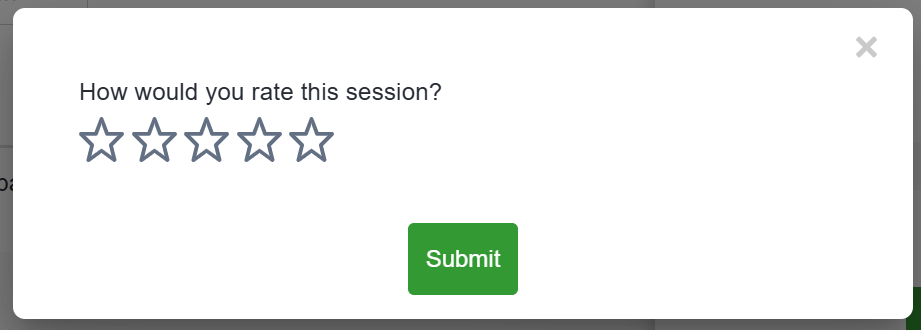
The survey opens in the app and participants can easily respond.
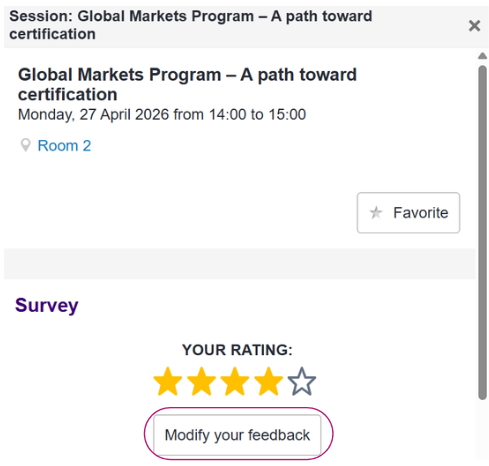
After submission:
Participants can view their feedback
They can edit it via “Edit your feedback”
⚠️ If the session has not started, the button is greyed out with an availability message.
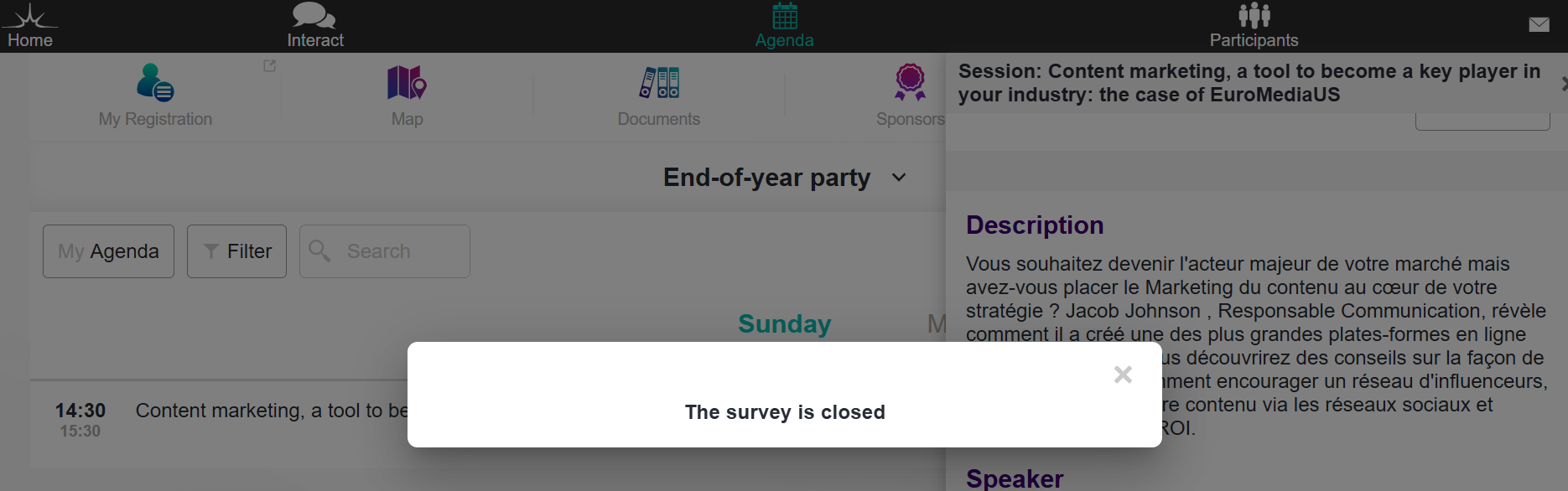
⚠️ If the form is closed, a custom closure message is displayed.
Viewing survey results
To view responses:
Go to “Satisfaction Survey” > “Survey results”
Select the desired survey from the dropdown list
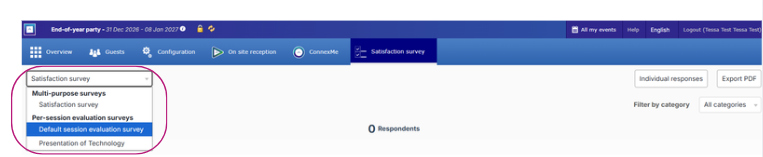
This allows you to track and compare feedback from each survey separately.
Useful article: How to create multiple satisfaction surveys for an event?